Presenter demo / 02:04 / Published 2026-06-18
Record & Replay in Codex
A recorded publishing workflow is followed by a generated skill and a second upload that reuses it. The repeated task makes before-and-after comparison concrete.
Useful to borrow
Establish a manual workflow, expose the reusable artifact, then replay the same kind of task with new inputs. Keep the external application's completion state visible.
Do not infer
The film compresses a multi-step upload; its duration is not a product latency measurement. Do not suggest your product has record-and-replay without verifying it.
Look closer
- End the process on an inspectable artifact · 00:44–00:51
22 shot groups.
Read across from the observed content to its treatment and possible adaptation. Enlarge the frame for detail.
Approximate study intervals; horizontal scrolling reveals all columns on small screens.
| Moment / source | Reference frame | What is on screen | Framing / edit | Useful adaptation |
|---|---|---|---|---|
| Shot group 01 ≈ 00:00–00:19 People / environmentWatch from here ↗ | Sample 00:10.000 | Presenter introduction A desk presenter introduces the workflow before any screen capture. | Single steady wide shot. | Let the supplied talking head establish the problem. |
| Shot group 02 ≈ 00:19–00:25 App / browser screenWatch from here ↗ | Sample 00:24.000 | Codex composer A Record & Replay request is entered into the new-task composer. | Wide app view moves attention to the prompt. | Show the initiating request before the external task. |
| Shot group 03 ≈ 00:25–00:28 App / browser screenWatch from here ↗ | Sample 00:26.000 | YouTube upload / file picker An upload dialog and local file window establish the source media. | Overlapping native windows show the handoff. | Keep input selection visible when it explains the workflow. |
| Shot group 04 ≈ 00:28–00:30 App / browser screenWatch from here ↗ | Sample 00:28.000 | Publishing spreadsheet A spreadsheet supplies publishing information. | Brief full-browser reference view. | Show the source of task data rather than implying it appeared automatically. |
| Shot group 05 ≈ 00:30–00:34 App / browser screenWatch from here ↗ | Sample 00:32.000 | Upload metadata Title and description fields are populated in the upload dialog. | Stable browser framing through form entry. | Group related fields into one readable action beat. |
| Shot group 06 ≈ 00:34–00:37 App / browser screenWatch from here ↗ | Sample 00:36.000 | Subtitle import Subtitle controls open a native file picker. | Modal-on-modal sequence retains the browser behind it. | Preserve a meaningful file-import step. |
| Shot group 07 ≈ 00:37–00:40 App / browser screenWatch from here ↗ | Sample 00:38.000 | Subtitle review Timed caption rows appear beside the video preview. | Two-pane editor demonstrates the imported result. | Show imported content in its destination, not only the picker. |
| Shot group 08 ≈ 00:40–00:43 App / browser screenWatch from here ↗ | Sample 00:40.000 | Publishing visibility The upload flow reaches its visibility choices. | The final form step stays legible. | Do not omit a material privacy or publishing choice. |
| Shot group 09 ≈ 00:43–00:49 App / browser screenWatch from here ↗ | Sample 00:46.000 | Recording completion The conversation shows a done message and recording-processing status. | Return to the original task context. | Make the handoff back to the assistant explicit. |
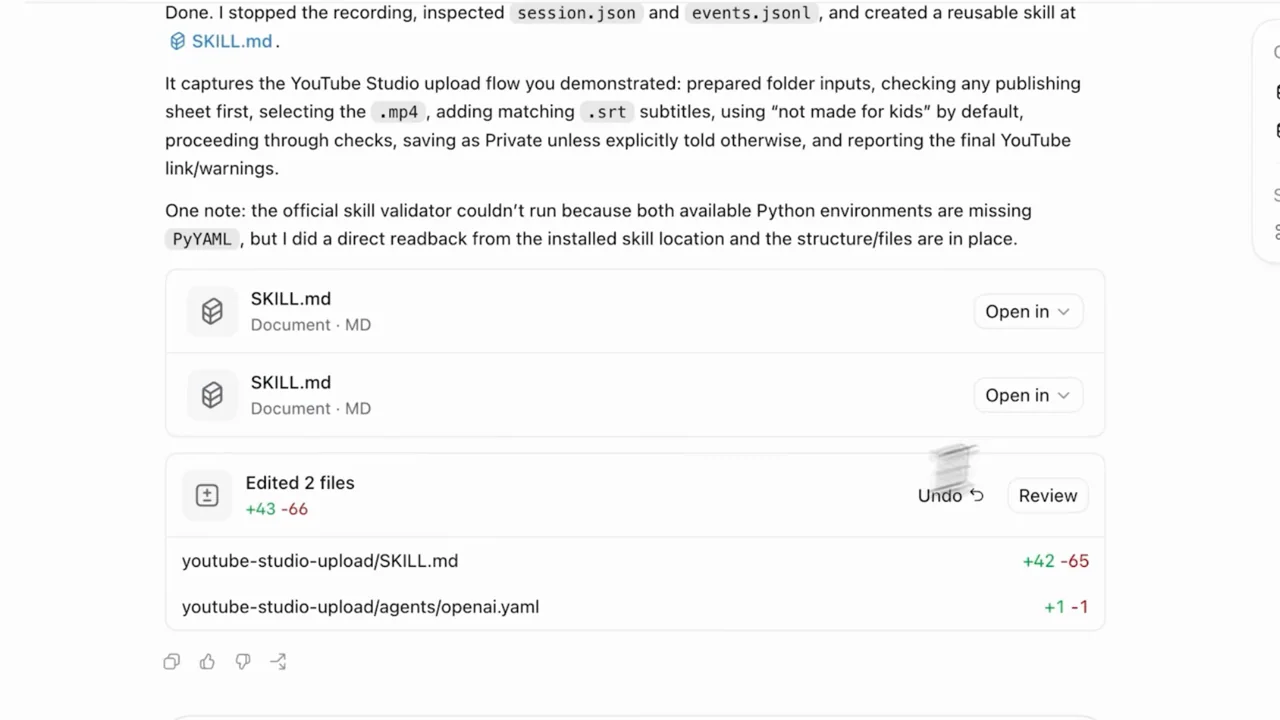
| Shot group 10 ≈ 00:49–00:57 App / browser screenWatch from here ↗ | Sample 00:50.000 | Generated skill artifact Skill documents and an edited-files summary appear in the response. | Close conversation crop emphasizes inspectable outputs. | Show the reusable artifact before claiming the process is reusable. |
| Shot group 11 ≈ 00:57–01:04 People / environmentWatch from here ↗ | Sample 01:00.000 | Presenter bridge The speaker returns between the recording and replay examples. | Same desk framing separates the two demonstrations. | Use a chapter transition instead in the silent presentation. |
| Shot group 12 ≈ 01:04–01:08 App / browser screenWatch from here ↗ | Sample 01:06.000 | Replay inputs A file window is used to select the next upload's source files. | Input selection is shown against the empty composer. | Make the changed input obvious in a repeated workflow. |
| Shot group 13 ≈ 01:08–01:12 App / browser screenWatch from here ↗ | Sample 01:10.000 | Skill invocation The composer shows attached inputs and a request referencing the upload skill. | Prompt and attachment chips share the frame. | Connect the earlier artifact to the next action. |
| Shot group 14 ≈ 01:12–01:16 App / browser screenWatch from here ↗ | Sample 01:14.000 | Replay task state The submitted task appears in a conversation with an output rail. | Brief established app state before browser activity. | Retain a visible start state for an automated sequence. |
| Shot group 15 ≈ 01:16–01:19 App / browser screenWatch from here ↗ | Sample 01:18.000 | Replayed upload The browser opens the next file and reaches the upload details dialog. | External application remains identifiable. | Show the real destination rather than an abstract progress animation. |
| Shot group 16 ≈ 01:19–01:23 App / browser screenWatch from here ↗ | Sample 01:22.000 | Metadata and thumbnail The new video's description and thumbnail appear in the upload form. | Successive form states within one browser view. | Choose a visibly different result to prove the new input was used. |
| Shot group 17 ≈ 01:23–01:27 App / browser screenWatch from here ↗ | Sample 01:26.000 | Replayed subtitle import A file picker leads to the subtitle import options. | The same task stage returns with new material. | Match framing across before-and-after workflow stages. |
| Shot group 18 ≈ 01:27–01:30 App / browser screenWatch from here ↗ | Sample 01:28.000 | Imported captions The subtitle editor displays the new video's caption rows. | Preview and timed text provide result evidence. | Include a validation view after an automated import. |
| Shot group 19 ≈ 01:30–01:34 App / browser screenWatch from here ↗ | Sample 01:32.000 | Visibility confirmation The replay reaches the final visibility and save step. | Stable dialog framing through the closing action. | Show the consequential last action without hiding its settings. |
| Shot group 20 ≈ 01:34–01:38 App / browser screenWatch from here ↗ | Sample 01:36.000 | Channel content result The content list shows the uploaded video and a visibility notice. | Result view replaces the upload dialog. | End the demo on the actual saved item. |
| Shot group 21 ≈ 01:38–02:01 People / environmentWatch from here ↗ | Sample 01:50.000 | Presenter conclusion The desk presenter carries the closing explanation. | Long static human shot after the result. | Keep this time with the talking head; do not stretch UI for filler. |
| Shot group 22 ≈ 02:01–02:04 Title / identityWatch from here ↗ | Sample 02:04.000 | End identity A white identity ending closes the film. | Centered wordmark and symbol. | Use the presentation's own final card. |