Presenter demo / 01:06 / Published 2026-03-05
The Codex app is now on Windows
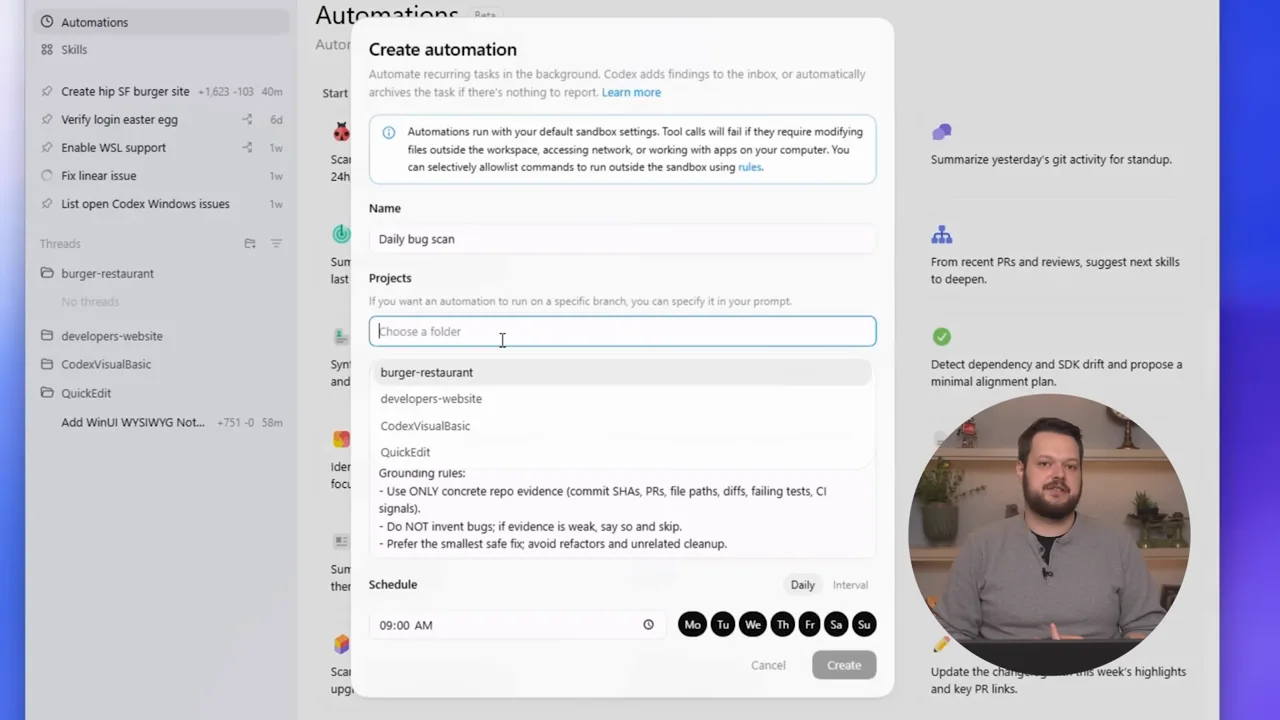
A presenter-led walkthrough alternates full camera coverage with desktop demos carrying a circular presenter inset. Camera crops follow the active sidebar, modal, or setting; the UI stays recognizable.
Useful to borrow
Use whole-window → active-control → result framing. Retain permission and environment settings when they explain a workflow.
Do not infer
The inset presenter is already baked into this reference. Do not imitate that composite: our deliverables keep presentation and talking head separate.
10 shot groups.
Read across from the observed content to its treatment and possible adaptation. Enlarge the frame for detail.
Approximate study intervals; horizontal scrolling reveals all columns on small screens.
| Moment / source | Reference frame | What is on screen | Framing / edit | Useful adaptation |
|---|---|---|---|---|
| Shot group 01 ≈ 00:00–00:04 People / environmentWatch from here ↗ | Sample 00:02.000 | Presenter A seated presenter introduces the update. | Stable medium shot. | Reference only; supplied OBS footage owns the presenter. |
| Shot group 02 ≈ 00:04–00:12 App / browser screenWatch from here ↗ | Sample 00:08.000 | Thread sidebar A desktop window and project sidebar appear with a circular presenter inset. | Whole-window context then sidebar crop. | Borrow the crop, not the inset. |
| Shot group 03 ≈ 00:12–00:21 App / browser screenWatch from here ↗ | Sample 00:18.000 | Agent activity / permissions The task transcript and permission choices become the focus. | Closer result and control framing. | Keep consequential settings visible in a demo. |
| Shot group 04 ≈ 00:21–00:27 App / browser screenWatch from here ↗ | Sample 00:24.000 | Skills menu A skills catalog leads to a picker in the composer. | Catalog overview then selection detail. | Show how a capability is chosen. |
| Shot group 05 ≈ 00:27–00:33 App / browser screenWatch from here ↗ | Sample 00:30.000 | Automation form A scheduling page opens a setup dialog. | Full window to form crop. | Make the task and cadence legible. |
| Shot group 06 ≈ 00:33–00:41 App / browser screenWatch from here ↗ | Sample 00:36.000 | Composer / worktree Task location is selected and a short request is entered. | Lower-window crop with controls retained. | Preserve the context-setting step before typing. |
| Shot group 07 ≈ 00:41–00:45 App / browser screenWatch from here ↗ | Sample 00:44.000 | Skill detail A skill information panel fills the center. | Modal over a dimmed catalog. | Use a real detail state rather than a decorative label. |
| Shot group 08 ≈ 00:45–00:49 App / browser screenWatch from here ↗ | Sample 00:48.000 | Settings The demo moves from the task window into general settings. | Wider establishing view. | Orient viewers before a new settings region. |
| Shot group 09 ≈ 00:49–00:56 App / browser screenWatch from here ↗ | Sample 00:54.000 | Settings / environment Environment and shell options are opened in close-up. | Fixed settings crop with menu state changes. | A setting change can be the proof shot when that is the topic. |
| Shot group 10 ≈ 00:56–01:06 People / environmentWatch from here ↗ | Sample 01:00.000 | Presenter The presenter returns for the conclusion. | Full camera view; no elaborate end slate. | The separate talking head can finish after the presentation ends. |