Presenter demo / 01:19 / Published 2026-07-16
ChatGPT can now complete tasks on your computer
A presenter-led demo spans browser research, an annotated web page, an expense form, and a native Notes task. It makes application boundaries visible.
Useful to borrow
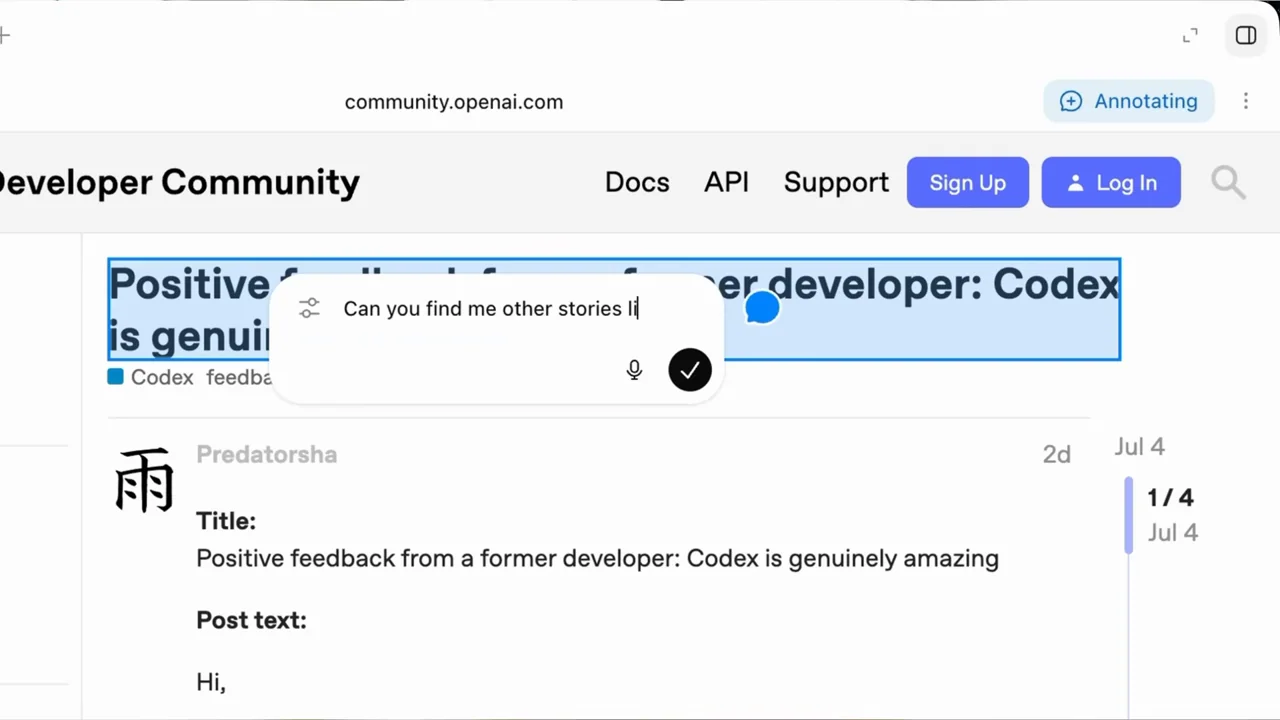
Keep external applications recognizable, preserve permission states, and use real page annotation to turn a broad task into a specific follow-up.
Do not infer
Do not borrow the inset presenter for the companion video or imply a submitted expense from a populated form alone. The native-app permission step is material.
Look closer
- Attach the follow-up to its source · 00:30–00:35
16 shot groups.
Read across from the observed content to its treatment and possible adaptation. Enlarge the frame for detail.
Approximate study intervals; horizontal scrolling reveals all columns on small screens.
| Moment / source | Reference frame | What is on screen | Framing / edit | Useful adaptation |
|---|---|---|---|---|
| Shot group 01 ≈ 00:00–00:06 People / environmentWatch from here ↗ | Sample 00:04.000 | Physical opening and title A presenter arrives at the desk while a topic title overlays the laptop shot. | Wide-to-object opening with large type. | Use a brief contextual opening, not a second talking head. |
| Shot group 02 ≈ 00:06–00:14 People / environmentWatch from here ↗ | Sample 00:10.000 | Presenter explanation Wide and close speaker views introduce the demonstration. | Alternating desk-camera scales. | Keep the explanation in the user-supplied recording. |
| Shot group 03 ≈ 00:14–00:18 App / browser screenWatch from here ↗ | Sample 00:16.000 | Browser research request A prompt asks for feedback from a community website. | Composer crop with a small presenter inset. | Show the task's source and scope before browser navigation. |
| Shot group 04 ≈ 00:18–00:21 App / browser screenWatch from here ↗ | Sample 00:20.000 | Browser search results A browser output opens a community search-results page. | Output rail leads to the destination page. | Retain the handoff between task and browsing surface. |
| Shot group 05 ≈ 00:21–00:24 App / browser screenWatch from here ↗ | Sample 00:22.000 | Source page selection A community topic is opened and text is highlighted. | Close browser framing makes the source readable. | Show source material rather than only a generated summary. |
| Shot group 06 ≈ 00:24–00:29 App / browser screenWatch from here ↗ | Sample 00:26.000 | Research summary and sources The conversation and source page appear together during the summary. | Split view links conclusions to source context. | Keep a relevant source visible beside the claim. |
| Shot group 07 ≈ 00:29–00:32 App / browser screenWatch from here ↗ | Sample 00:30.000 | Follow-up source page A positive-feedback topic fills the browser pane. | Close crop establishes the next annotation target. | Show the selected item before attaching a new instruction. |
| Shot group 08 ≈ 00:32–00:37 App / browser screenWatch from here ↗ | Sample 00:34.000 | Page annotation The topic heading is highlighted and a contextual follow-up is entered. | Native selection plus an inline prompt. | Make the revision target unambiguous without a decorative arrow. |
| Shot group 09 ≈ 00:37–00:43 App / browser screenWatch from here ↗ | Sample 00:40.000 | Second task request The app returns to a fresh composer for another task. | Wide reset separates the examples. | Use a recognizable content transition between unrelated workflows. |
| Shot group 10 ≈ 00:43–00:47 App / browser screenWatch from here ↗ | Sample 00:46.000 | Expense application Browser navigation reaches a new-transaction form. | Destination chrome remains visible. | Establish the real app receiving the action. |
| Shot group 11 ≈ 00:47–00:54 App / browser screenWatch from here ↗ | Sample 00:50.000 | Populated expense form Merchant, date, and amount fields appear in the form. | Close form view followed by a wider result. | Describe the visible prepared state, not an unshown submission. |
| Shot group 12 ≈ 00:54–00:59 App / browser screenWatch from here ↗ | Sample 00:56.000 | Native Notes request A fresh request asks to update a Notes list. | Composer reset makes the application change explicit. | Separate browser work from native-app control. |
| Shot group 13 ≈ 00:59–01:03 App / browser screenWatch from here ↗ | Sample 01:02.000 | Native-app permission The task shows a permission question with the Notes window behind it. | Overlapping windows preserve the consequential approval. | Never edit away a meaningful permission step. |
| Shot group 14 ≈ 01:03–01:08 App / browser screenWatch from here ↗ | Sample 01:06.000 | Notes result The Notes app displays the resulting task list. | Native window in front of the conversation. | Verify the result in the application where it is used. |
| Shot group 15 ≈ 01:08–01:17 People / environmentWatch from here ↗ | Sample 01:12.000 | Presenter conclusion The film returns to the desk presenter. | Stable human closing shot. | Let the talking head carry the conclusion while visuals settle. |
| Shot group 16 ≈ 01:17–01:19 Title / identityWatch from here ↗ | Sample 01:18.000 | End identity A white brand ending replaces the presenter. | Minimal closing card. | Use an original final visual. |