Presenter demo / 01:54 / Published 2026-08-28
Use ChatGPT Work on Your Phone
A mobile walkthrough combines voice input, readable task results, desktop pairing, and a side-by-side phone-to-desktop handoff.
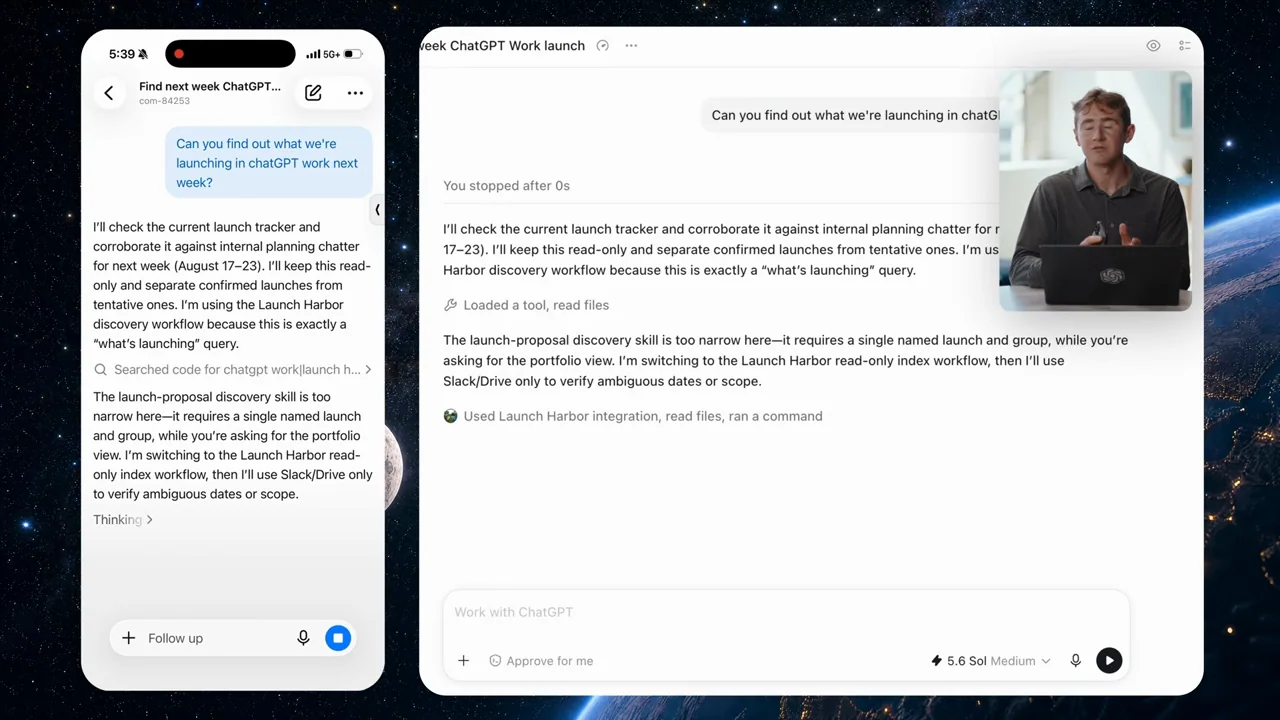
Useful to borrow
Alternate the full device silhouette with closer content crops. Show the same task on both devices when continuity is the claim.
Do not infer
The source QR code and device identity are not reusable assets. Phone-screen text needs extra size in an all-hands video; do not rely on the tiny full-device view alone.
Look closer
- Prove continuity with both devices in view · 01:31–01:35
18 shot groups.
Read across from the observed content to its treatment and possible adaptation. Enlarge the frame for detail.
Approximate study intervals; horizontal scrolling reveals all columns on small screens.
| Moment / source | Reference frame | What is on screen | Framing / edit | Useful adaptation |
|---|---|---|---|---|
| Shot group 01 ≈ 00:00–00:04 People / environmentWatch from here ↗ | Sample 00:02.000 | Phone topic opening A close physical shot introduces the phone and topic title. | Object-focused opening. | Establish the device category without adding a second presenter. |
| Shot group 02 ≈ 00:04–00:20 People / environmentWatch from here ↗ | Sample 00:12.000 | Presenter setup Wide and close presenter views introduce the mobile workflow. | Phone held within the desk composition. | Leave spoken setup to the supplied talking head. |
| Shot group 03 ≈ 00:20–00:27 App / browser screenWatch from here ↗ | Sample 00:24.000 | Mobile voice input An enlarged phone composer shows a dictation waveform. | Lower-device crop makes input controls readable. | Show the real input state while retaining a recognizable device edge. |
| Shot group 04 ≈ 00:27–00:31 App / browser screenWatch from here ↗ | Sample 00:28.000 | Mobile research request The submitted request and source-activity rows appear on the phone. | Closer content view pulls back to the full device. | Connect voice input to the actual submitted task. |
| Shot group 05 ≈ 00:31–00:41 App / browser screenWatch from here ↗ | Sample 00:36.000 | Mobile work summary A linked summary scrolls through items requiring attention. | Full phone on a scenic background with a presenter inset. | Choose one readable result section rather than a long tiny scroll. |
| Shot group 06 ≈ 00:41–00:48 People / environmentWatch from here ↗ | Sample 00:44.000 | Presenter bridge The speaker returns between mobile tasks. | Wide and close human shots. | Use a concise chapter transition in the companion video. |
| Shot group 07 ≈ 00:48–00:55 App / browser screenWatch from here ↗ | Sample 00:50.000 | Second mobile request Another dictation sequence becomes a finance-related request. | Matched composer treatment for a different task. | Use a distinct workflow rather than repeating the same example. |
| Shot group 08 ≈ 00:55–01:06 App / browser screenWatch from here ↗ | Sample 01:02.000 | Mobile financial summary The conversation shows source activity and a categorized financial response. | Scrollable phone result with visible task context. | Use safe demo data and describe only the displayed analysis. |
| Shot group 09 ≈ 01:06–01:10 People / environmentWatch from here ↗ | Sample 01:08.000 | Close presenter bridge A close speaker view interrupts the screen sequence. | Short human explanation beat. | Keep this role in the talking-head asset. |
| Shot group 10 ≈ 01:10–01:14 App / browser screenWatch from here ↗ | Sample 01:12.000 | Contextual voice follow-up A new waveform appears below an existing result section. | Close lower-screen crop retains the prior answer. | Show that the follow-up refers to visible context. |
| Shot group 11 ≈ 01:14–01:20 People / environmentWatch from here ↗ | Sample 01:16.000 | Pairing introduction The presenter returns before the desktop setup. | Wide desk framing. | Signal the change from mobile use to device setup. |
| Shot group 12 ≈ 01:20–01:22 App / browser screenWatch from here ↗ | Sample 01:20.000 | Remote setup entry A desktop app menu exposes the remote setup command. | Close menu crop. | Show where the setup begins. |
| Shot group 13 ≈ 01:22–01:26 App / browser screenWatch from here ↗ | Sample 01:24.000 | Pairing screen A remote-connection page displays a QR code and connection controls. | Wide page then tighter pairing-code view. | Use a fresh safe pairing state; never reuse a source QR code. |
| Shot group 14 ≈ 01:26–01:32 App / browser screenWatch from here ↗ | Sample 01:30.000 | Desktop task state A desktop conversation shows a work request and research response. | Full task view establishes the desktop side. | Keep task identity visible before the cross-device comparison. |
| Shot group 15 ≈ 01:32–01:36 App / browser screenWatch from here ↗ | Sample 01:34.000 | Phone and desktop continuity Phone and desktop views of the task appear side by side. | Paired devices demonstrate continuity directly. | Use matching task content as evidence of the handoff. |
| Shot group 16 ≈ 01:36–01:42 App / browser screenWatch from here ↗ | Sample 01:40.000 | Connection management Settings expose the connected device and connection controls. | Navigation leads to a close settings detail. | Show how a connection can be inspected or controlled. |
| Shot group 17 ≈ 01:42–01:52 People / environmentWatch from here ↗ | Sample 01:48.000 | Presenter conclusion The presenter closes with the laptop and phone. | Wide and close human ending. | Preserve the supplied recording's own closing performance. |
| Shot group 18 ≈ 01:52–01:54 Title / identityWatch from here ↗ | Sample 01:54.000 | End identity A white brand ending closes the film. | Minimal final card. | Use original presentation identity. |