Presenter demo / 03:53 / Published 2026-08-28
Getting Started with ChatGPT Work
An onboarding walkthrough shows installation, mode selection, integration consent, source review, draft editing, and an explicit send action. Setup is treated as part of the workflow.
Useful to borrow
Preserve the path from setup to a useful task. Keep consent, source inspection, draft review, and sending as separate observable states.
Do not infer
This long tutorial is a setup reference rather than a pacing template for a polished launch film. Do not copy account details, installation instructions, or promotional availability claims into your product guidance.
32 shot groups.
Read across from the observed content to its treatment and possible adaptation. Enlarge the frame for detail.
Approximate study intervals; horizontal scrolling reveals all columns on small screens.
| Moment / source | Reference frame | What is on screen | Framing / edit | Useful adaptation |
|---|---|---|---|---|
| Shot group 01 ≈ 00:00–00:04 People / environmentWatch from here ↗ | Sample 00:02.000 | Overhead title A room-wide shot introduces the getting-started topic. | Environmental title opening. | Use a short chapter label before setup detail. |
| Shot group 02 ≈ 00:04–00:16 People / environmentWatch from here ↗ | Sample 00:10.000 | Presenter introduction Wide and close shots establish the tutorial. | Alternating human scales. | Keep setup explanation in the talking-head recording. |
| Shot group 03 ≈ 00:16–00:22 Graphic interludeWatch from here ↗ | Sample 00:20.000 | Mode-switch illustration An enlarged Chat/Work switch overlays the presenter. | Isolated UI illustration rather than a complete app screen. | Label a mode distinction before showing it in context. |
| Shot group 04 ≈ 00:22–00:44 People / environmentWatch from here ↗ | Sample 00:34.000 | Connected-work explanation The presenter continues with occasional integration-logo overlays. | Human explanation with sparse supporting graphics. | Do not count isolated service logos as demonstrated workflows. |
| Shot group 05 ≈ 00:44–00:48 App / browser screenWatch from here ↗ | Sample 00:46.000 | Desktop download page A browser displays the desktop download page. | Full website context. | Show the authentic entry point when setup is relevant. |
| Shot group 06 ≈ 00:48–00:52 App / browser screenWatch from here ↗ | Sample 00:50.000 | Browser mode switch The web app switches from chat to work mode. | Close crop on the mode control and composer. | Demonstrate the actual state change rather than only an illustration. |
| Shot group 07 ≈ 00:52–01:00 People / environmentWatch from here ↗ | Sample 00:56.000 | Installation bridge The speaker returns before the installer sequence. | Close and wide presenter views. | Let the narration explain prerequisites. |
| Shot group 08 ≈ 01:00–01:04 App / browser screenWatch from here ↗ | Sample 01:02.000 | Native installation A macOS installer window shows the app moving to Applications. | Native operating-system surface over the download page. | Retain platform context for a setup demonstration. |
| Shot group 09 ≈ 01:04–01:11 App / browser screenWatch from here ↗ | Sample 01:08.000 | Desktop account menu The installed app opens and its account menu is inspected. | Whole app followed by a lower-sidebar crop. | Show the actual account context without exposing sensitive data. |
| Shot group 10 ≈ 01:11–01:20 App / browser screenWatch from here ↗ | Sample 01:18.000 | Desktop mode selection The mode switch is shown at larger scale and Work is selected. | Control-focused crop. | Keep the selected state visually obvious. |
| Shot group 11 ≈ 01:20–01:26 App / browser screenWatch from here ↗ | Sample 01:24.000 | Work workspace The desktop work composer is established. | Wider app frame after the control detail. | Re-establish where the user has arrived. |
| Shot group 12 ≈ 01:26–01:40 People / environmentWatch from here ↗ | Sample 01:34.000 | Integration introduction The presenter explains connections before showing them. | Wide and close human shots. | Separate prerequisites from the main task. |
| Shot group 13 ≈ 01:40–01:46 App / browser screenWatch from here ↗ | Sample 01:44.000 | Plugin discovery The catalog is searched for a mail integration. | Navigation and filtered catalog remain visible. | Show a reproducible discovery path. |
| Shot group 14 ≈ 01:46–01:52 App / browser screenWatch from here ↗ | Sample 01:50.000 | Account consent An account-choice flow leads to a permissions page. | External authorization steps remain legible. | Do not omit the consent boundary. |
| Shot group 15 ≈ 01:52–01:56 App / browser screenWatch from here ↗ | Sample 01:54.000 | Connection completion The app returns to connection confirmation and catalog results. | Modal and catalog states connect setup to completion. | Show the integration's resulting state. |
| Shot group 16 ≈ 01:56–02:02 App / browser screenWatch from here ↗ | Sample 01:58.000 | Slack integration detail A second integration page displays its task description and connected state. | Stable detail-page layout. | Identify the second source used by the upcoming task. |
| Shot group 17 ≈ 02:02–02:06 People / environmentWatch from here ↗ | Sample 02:04.000 | Task bridge The presenter introduces the connected task. | Wide desk shot. | Use narration to state the desired outcome. |
| Shot group 18 ≈ 02:06–02:16 App / browser screenWatch from here ↗ | Sample 02:12.000 | Multi-source dinner request The composer asks to find a reservation email, check team details, and draft a reply. | Close prompt framing shows both source chips. | Make inputs and the draft-only boundary explicit. |
| Shot group 19 ≈ 02:16–02:22 App / browser screenWatch from here ↗ | Sample 02:20.000 | Source-reading progress The conversation shows work on the request. | Wider app view after the prompt. | Keep only progress that explains a meaningful dependency. |
| Shot group 20 ≈ 02:22–02:26 People / environmentWatch from here ↗ | Sample 02:24.000 | Presenter insert A short speaker shot separates processing from results. | Brief human bridge. | Do not treat the edited gap as elapsed task time. |
| Shot group 21 ≈ 02:26–02:32 App / browser screenWatch from here ↗ | Sample 02:30.000 | Prepared reply The response summarizes source findings and displays a draft message. | Close result view retains the unsent draft controls. | Differentiate preparation from sending. |
| Shot group 22 ≈ 02:32–02:40 People / environmentWatch from here ↗ | Sample 02:36.000 | Source-review explanation The presenter returns before checking the inputs. | Wide and close shots. | Let narration explain why source review matters. |
| Shot group 23 ≈ 02:40–02:44 App / browser screenWatch from here ↗ | Sample 02:42.000 | Reservation email source The original reservation email is opened in Gmail. | Readable source-message crop. | Verify the source behind a proposed reply. |
| Shot group 24 ≈ 02:44–02:48 App / browser screenWatch from here ↗ | Sample 02:46.000 | Team-chat source Slack appears beside the task with the relevant team discussion. | Overlapping windows keep both source and draft context. | Show the other source used to compose the answer. |
| Shot group 25 ≈ 02:48–03:00 People / environmentWatch from here ↗ | Sample 02:54.000 | Draft-review bridge The presenter explains the final review step. | Human explanation before a consequential action. | Do not rush the review-and-send distinction. |
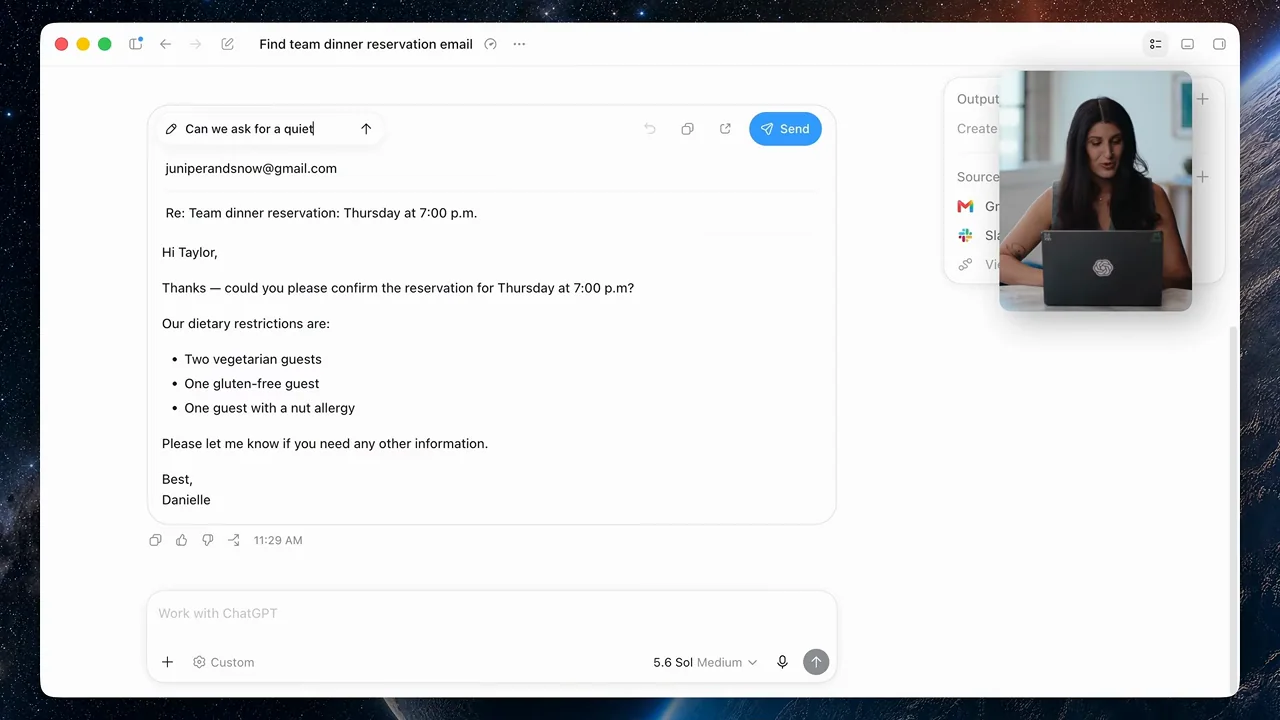
| Shot group 26 ≈ 03:00–03:04 App / browser screenWatch from here ↗ | Sample 03:02.000 | Draft text revision The draft message is edited in place before sending. | Native text selection supplies the emphasis. | Show the human's final correction. |
| Shot group 27 ≈ 03:04–03:08 App / browser screenWatch from here ↗ | Sample 03:06.000 | Explicit send action The send control is activated and a sending state appears. | Close crop isolates the consequential control. | Keep the actual send step separate from earlier draft preparation. |
| Shot group 28 ≈ 03:08–03:18 People / environmentWatch from here ↗ | Sample 03:14.000 | Presenter bridge The presenter resumes after the email example. | Wide and close shots. | Allow the result to settle before introducing an extra feature. |
| Shot group 29 ≈ 03:18–03:24 App / browser screenWatch from here ↗ | Sample 03:20.000 | Companion visibility control An account-menu action reveals a small desktop companion. | Control-to-result sequence in the app window. | Show a preference's visible effect rather than only its menu label. |
| Shot group 30 ≈ 03:24–03:28 App / browser screenWatch from here ↗ | Sample 03:26.000 | Companion task status The companion appears alongside a task response and status bubble. | Small persistent indicator beside the main work surface. | Keep supplemental status subordinate to the actual result. |
| Shot group 31 ≈ 03:28–03:50 People / environmentWatch from here ↗ | Sample 03:40.000 | Presenter conclusion The tutorial closes with extended presenter shots. | Human ending after the final UI example. | Use the supplied recording's own conclusion and buffer. |
| Shot group 32 ≈ 03:50–03:53 Title / identityWatch from here ↗ | Sample 03:52.000 | End identity A white identity ending closes the tutorial. | Minimal final card. | Use original presentation identity. |